


Signing in and the authenticator app
Every sign-in needs your password and a 6-digit code from an authenticator app; recovery codes if you lose your phone.
At a glance
- Where
- Sign in (top right of the public site) (
/login) - Who
- Every user of a firm. The demo needs no sign-in. Roles and permissions
- API
- GET
/me
Try it in the demo A private sandbox firm, no sign-up. Simulated data only.
On this page
Vestoris accounts belong to an organization (your firm). Every sign-in needs two things: your password and a code from an authenticator app on your phone. Use Microsoft Authenticator (or any authenticator app), such as Google Authenticator: they all work the same way (time-based codes, RFC 6238).
The interactive demo needs neither: it opens with one click and holds only simulated data.
How you get an account
There is no public sign-up.
- An organization's first Admin: the Vestoris site administrator creates the organization and sets your first password, which they give you themselves (it is never emailed). You get an email with your organization's sign-in link.
- Everyone else: your organization's Admin invites you from System › Users and permissions (how). The invitation email (valid for 7 days) lets you choose your password.
Your first sign-in
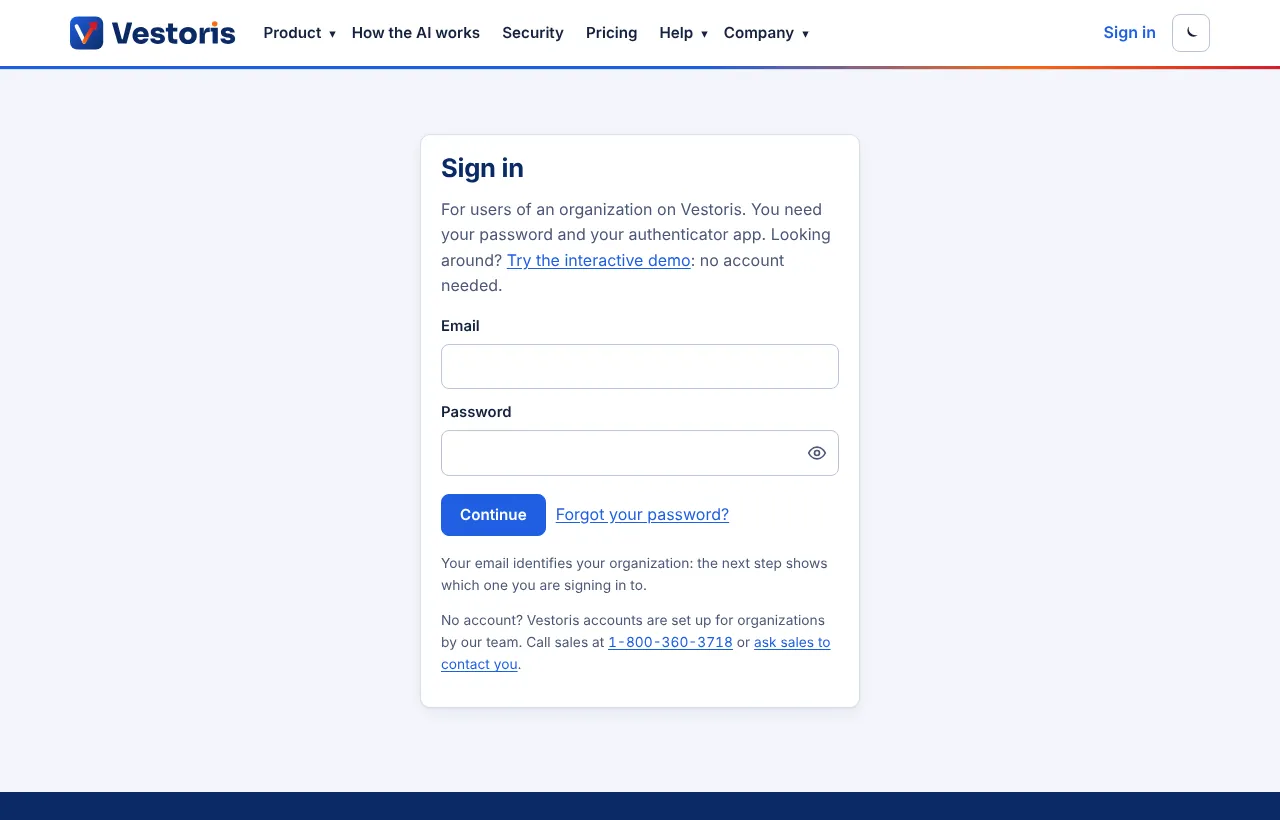
- Enter your email and password at Sign in. Your email identifies your organization; the next page shows "Signing in to your organization". (Your organization's own sign-in link,
/login?org=followed by its code, also checks that you belong to it.) - If the site administrator chose your password, choose your own now.
- Set up the authenticator app: install Microsoft Authenticator (or any authenticator app), add an account (in Microsoft Authenticator: + › Other account) and scan the QR code. Can't scan? Type the key shown beside it. The account appears as Vestoris (your organization).
- Enter the 6-digit code the app shows, to confirm it works.
- Save your ten recovery codes (print them, or keep them in your password manager). They are shown only once. Then continue to Vestoris.
Every sign-in after that
Enter your email and password, then the 6-digit code your app shows now. A new code appears every 30 seconds; each code works once. If your phone's clock is a little off, Vestoris still accepts the code just before or after. There is no "remember this device": the code is asked at every sign-in.
If something goes wrong
- "That code does not match": make sure you used the Vestoris entry for the right organization, and that your phone sets its time automatically.
- "That code was already used": wait for the next code.
- Too many wrong codes lock the sign-in for 15 minutes.
- Lost your phone? On the code page, open Lost your phone? and enter one of your recovery codes instead: each works once. Then ask your organization's Admin to reset your authenticator (Users and permissions), so you can set it up on your new phone at your next sign-in. An Admin who is locked out asks another Admin, or Vestoris support.
- Forgot your password? Use Forgot your password?: the emailed link lets you choose a new one, and you still enter your authenticator code afterwards.
Admins
On Users and permissions you see whether each user has set up the authenticator, and you can reset a colleague's authenticator (not your own). Resets are recorded in the event log.
Scripts and the API
Personal access tokens, service accounts and apps keep working without codes: tokens are machine credentials. You can create a personal access token (My API access) only after signing in with your authenticator code. See Authentication.
Related articles
Do it with the API
Every action on this screen can also be done by your own systems, under the same permissions. See Authentication to get a token.
- GET
/api/v1/meWho the token acts as: user or service account, firm, role, privileges, scopes
Paper trading only: orders and fills in Vestoris are simulated. Nothing here is investment advice.